

Toolbar
Complete guide to toolbar controls and features in the Avara Viewer.
Introduction
Section titled “Introduction”The toolbar provides comprehensive controls for interacting with DICOM images in the viewer. This section covers all available toolbar functions and their usage.
Toolbar actions are split into two categories:
- Discrete actions, which are applied instantly at the point of clicking
- Continuous actions, which bind a mouse click (left click or right click) to that particular operation
Action types:
-
Continuous actions are applied at the viewport level where you can adjust:
- Windowing
- Pan
- Zoom
- Crosshairs
- Measure
- Annotate
-
Discrete actions either:
- Perform a transformation on a viewport:
- MPR
- 3D
- Fusion
- Color inversion
- Rotation
- Reset view
- Adjust a viewer-wide state:
- Viewport layout
- Cross reference type
- Sync scroll enabled/disabled
- Signal intensity on hover enabled/disabled
- Clear viewports (removes all series)
- Capture viewport as secondary capture
- Study/series download
- Perform a transformation on a viewport:
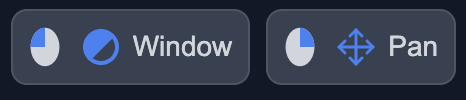
Ex. Mouse icons next to the window and pan buttons indicate active left and right click bindings.
Layout
Section titled “Layout”Changes the viewport layout configuration, allowing you to arrange multiple viewports in different grid patterns (e.g., 1x1, 2x2, 3x3).
Discrete action: click applies state change to viewer-wide.
Window
Section titled “Window”Adjusts the window width and level (brightness and contrast) of the displayed image. Once activated, click and drag in a viewport to modify the windowing parameters.
Continuous action: click + drag changes state of the viewport.
Moves the image within the viewport. Once activated, click and drag in a viewport to pan the image.
Continuous action: click + drag changes state of the viewport.
Magnifies or reduces the image display. Once activated, click and drag in a viewport to zoom in or out.
Continuous action: click + drag changes state of the viewport.
Crosshairs
Section titled “Crosshairs”Calibrates all series to the same coordinate in 3D space when there is geometric overlap with the active series. Once activated, frames scroll and crosshair lines are displayed on all viewports accordingly.
Continuous action: click + drag changes state of the viewport.
Measure
Section titled “Measure”Adds quantitative measurements to images. The measure tool includes several types. Once activated, click and/or drag in a viewport to create measurements.
Continuous action: click + drag changes state of the viewport.
Draw a straight line to measure distance between two points.
Polyline
Section titled “Polyline”Draw a multi-segment line to measure path length across multiple connected points.
Bidirectional
Section titled “Bidirectional”Measure the longest and shortest perpendicular axes of a lesion or structure.
Draw a region of interest for area measurements and statistical analysis—area, signal mean, signal standard deviation, and signal min/max. Select the ROI shape you want to use.
Measure the angle between two lines.
Height Difference
Section titled “Height Difference”Measure the vertical distance and simultaneous angle between two points.
Cardiothoracic Ratio
Section titled “Cardiothoracic Ratio”Measure the cardiothoracic ratio using predefined thoracic (maximum inner thoracic diameter) and cardiac (cardiac shadow) reference lines.
Cobb Angle
Section titled “Cobb Angle”Measure spinal curvature using the Cobb angle method between two vertebral endplates.
Vertebra Angle
Section titled “Vertebra Angle”Measure the angulation of a single vertebra relative to the viewport horizontal reference line.
Foot Longitudinal Arch
Section titled “Foot Longitudinal Arch”Measure the longitudinal arch (height and angle) of the foot using predefined anatomical reference points.
Goniometry
Section titled “Goniometry”Measure joint range of motion by placing a center point at the joint, then drawing two centerlines along adjacent limb segments. Reports the angle between the centerlines at the joint and the total distance along both segments. Commonly used for hip-to-knee-to-ankle measurements.
Calibration
Section titled “Calibration”Set a known scale on the image so subsequent measurements use calibrated physical units instead of missing or incorrect units.
Annotate
Section titled “Annotate”Adds visual annotations to images without quantitative measurements. Once activated, click and/or drag in a viewport to create annotations.
Continuous action: click + drag changes state of the viewport.
Spine Labels
Section titled “Spine Labels”Label vertebrae for spinal alignment and identification. Configure whether labels stay on one frame or propagate across all frames in a series, and define the start and end vertebrae. The tool automatically unselects after completing the last vertebra.
Draw arrows to point to specific areas of interest.
Add text annotations to label areas or add notes.
Pencil
Section titled “Pencil”Draw freehand annotations on the image.
Cross Reference
Section titled “Cross Reference”Sets the cross-reference type for linking viewports, enabling spatial relations/context between series in different viewports. You can configure the cross reference to show the center and slice boundaries, center only, boundaries only, or none.
Discrete action: click applies state change to viewer-wide.
Sync Scroll
Section titled “Sync Scroll”Enables or disables synchronized scrolling across multiple viewports through image series that have aligned orientation and spatial overlap simultaneously and seamlessly.
Discrete action: click applies state change to viewer-wide.
Info Overlay
Section titled “Info Overlay”Toggles the display of relevant information overlays on viewports. When enabled, shows the series name + patient name in top right, frame scrollbar on right with frame count on bottom right, display parameters on the bottom left, and viewport actions on top left.
Discrete action: click applies state change to viewer-wide.
Signal Intensity
Section titled “Signal Intensity”Enables or disables signal intensity display on hover, showing pixel intensity values when you move your cursor over the image. Renders in blue in bottom left on top of display parameters to allow users to inspect the signal value of the series at the cursor position.
Discrete action: click applies state change to viewer-wide.
Rotate View
Section titled “Rotate View”Rotates the image orientation in 90-degree increments clockwise within the selected viewport.
Discrete action: click applies state change to viewport.
Invert Color
Section titled “Invert Color”Inverts the color scheme of the image in the selected viewport, switching between positive and negative display modes.
Discrete action: click applies state change to viewport.
Activates multi-planar reconstruction mode, allowing you to view a series in a non-native acquisition plane. Supported planes are axial, coronal, and sagittal.
Discrete action: click applies state change to viewport.
3D Volume Rendering
Section titled “3D Volume Rendering”Generates a 3D volume rendering, enabling interactive 3D visualization and manipulation. Annotations, signal intensity, and color inversion are not supported in 3D mode.
Discrete action: click applies state change to viewport.
Fusion
Section titled “Fusion”Enables fusion of multiple series in a single viewport, allowing you to overlay and blend different imaging modalities or series for comparative analysis.
Discrete action: click applies state change to viewport.
Secondary Capture
Section titled “Secondary Capture”Captures the viewport as an RGB secondary capture, freezing any transformations, measurements, or annotations into the pixel data – and then saves the data tobe persisted as a series within the study.
Discrete action: click applies state change to viewport.
Reset View
Section titled “Reset View”Resets the selected viewport to its default zoom, pan, and windowing settings. Also resets the color inversion and clears all annotations.
Discrete action: click applies state change to viewport.
Clear Viewports
Section titled “Clear Viewports”Removes all series and images from all viewports, clearing the viewer for loading new series.
Discrete action: click applies state change to viewer-wide.
Download Study
Section titled “Download Study”Downloads the current study or series as DICOM files to your local machine. The download popup allows users to select which series or studies they would like to include in their download.
Discrete action: click brings up configure study download menu.