

Addendums
Add corrections or new information to a completed report. Each addendum is a new version, and every prior version stays viewable.
Introduction
Section titled “Introduction”Clinical context doesn’t always arrive before a report is finalized. Sometimes additional findings emerge after a study has been read, a referring provider shares relevant history that changes the interpretation, or a correction needs to be documented. An addendum is how that update is recorded. It is a new version of the report, and every prior version stays viewable. That version history is the audit trail.
AutoScribe makes adding addendums straightforward. When a signed report needs to change, initiate an addendum from the study page and dictate or type your edits the same way you would a normal report.
Adding an Addendum
Section titled “Adding an Addendum”To add an addendum to a completed report:
Step 1: Open the Study Page
Section titled “Step 1: Open the Study Page”Navigate to the study that requires an addendum and click into the study’s detail page.
Step 2: Initiate the Addendum
Section titled “Step 2: Initiate the Addendum”In the Report Status section, you’ll see an Add Addendum button. Click this to begin.
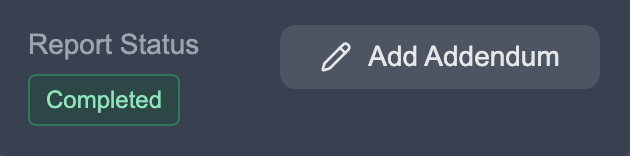
The study will be added back to your worklist with an “Addendum Active” status.
Step 3: Dictate the Addendum
Section titled “Step 3: Dictate the Addendum”Click Dictate Report from the worklist to open the report creation tool. An addendum is a new version of the report, and any content in it can be edited.
Dictate or type changes to correct a mistake, or to add information when more clinical context comes in after the original report was signed.
While the addendum is in progress, other people still see the last signed version. Your edits are not part of that report until you sign.
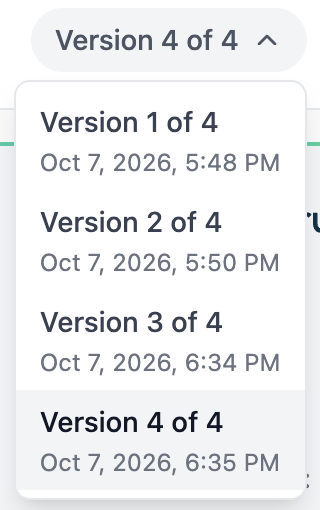
The version you sign becomes the current report. Earlier versions remain in the View Report popup, and the version dropdown lets you open any of them.
Step 4: Sign and Submit
Section titled “Step 4: Sign and Submit”Once you’ve finished your changes, sign and submit the report as normal. Signing saves the addendum as a new version. That version becomes the current report, and every previously signed version stays available.
Canceling an Addendum
Section titled “Canceling an Addendum”If you need to cancel an in-progress addendum, navigate to the study page and click the Cancel Addendum button in the Report Status section.
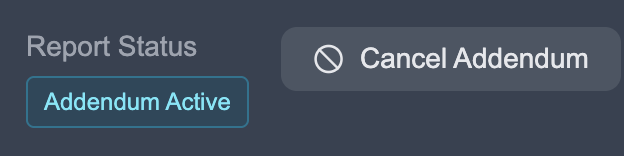
This will delete all progress on the addendum and remove the study from your worklist. The original completed report remains unchanged.
Multiple Addendums
Section titled “Multiple Addendums”A report can have any number of addendums. If more corrections or clinical context come in after an addendum is signed, add another one the same way. Each signed version is timestamped with the date and time of signature, so the version history is a chronological record of the report.
Viewing and Downloading Reports
Section titled “Viewing and Downloading Reports”While an addendum is active, the last signed version of the report remains the one available for viewing and downloading. Once the addendum is signed, that version is the most recent one, and it is the report people view and download. Earlier versions can still be opened from the version dropdown in the View Report popup.
Compliance and Audit Trail
Section titled “Compliance and Audit Trail”Each signed version is kept for review. A version includes:
- Timestamp – Date and time that version was signed
- Author identification – The reader who signed it
- The report as signed – That version stays as it was signed
The report people view and download is always the most recent signed version. Every earlier version remains available in the View Report popup, so the sequence of what was signed, when, and by whom stays available.