

Inviting Users
Learn how to invite users to your Viewer platform and configure their permissions and access levels.
Introduction
Section titled “Introduction”Once your integration is configured, you’ll need to invite users to your Viewer platform. User invitations are managed through the Viewer dashboard, where you can control access permissions and roles for each team member.
Inviting Users via Dashboard
Section titled “Inviting Users via Dashboard”To invite users to your platform:
- Navigate to the Users tab in the sidebar
- Go to Invitations to access the user invitation interface
- Click Invite User to open the invitation form
User Permissions
Section titled “User Permissions”When inviting a user, you’ll configure the following permission settings:
Can Manage Studies
Section titled “Can Manage Studies”Users with this permission can assign tasks, create studies, and edit study metadata. This permission is ideal for practice managers, schedulers, or administrative staff who need to manage study workflows.
Has Dashboard Access
Section titled “Has Dashboard Access”This permission controls whether users can log in and access the Viewer dashboard directly. The setting is nuanced and depends on your integration approach:
-
Enabled: Users can log in to the Viewer dashboard to view studies directly. This is recommended for simple use cases and provides the most straightforward user experience.
-
Disabled: Users cannot access the dashboard directly. In this case, your PACS integrator must support temporary access views (see the Integration guide for details). This approach is ideal for PACS companies who wish to keep their customers within their own platform while leveraging Viewer’s capabilities.
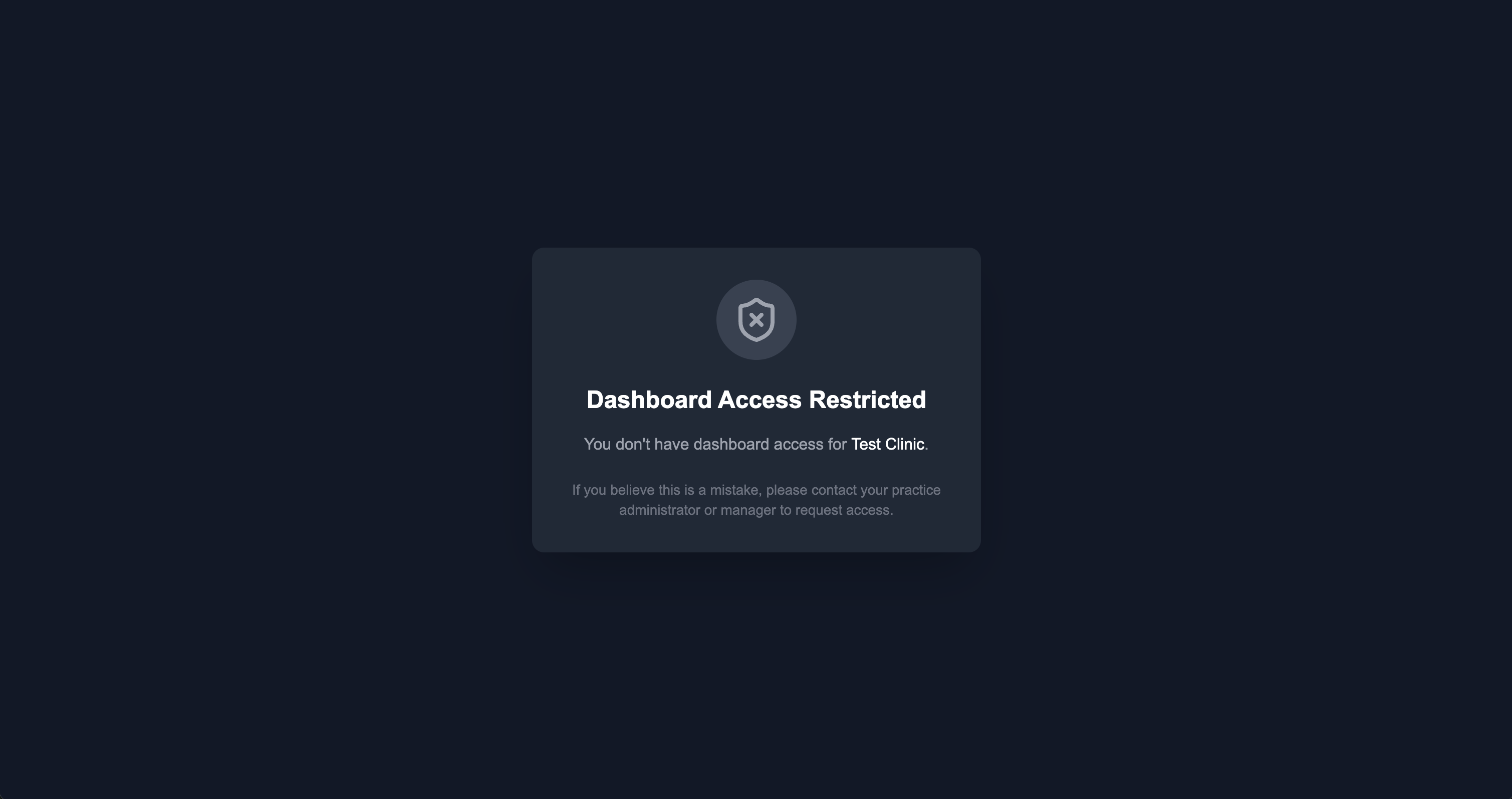
If a user without dashboard access attempts to log in, they will see a restricted access message indicating that dashboard access is not available for their account.
Is Admin
Section titled “Is Admin”Admin users have unbounded access to all platform features and settings. This role is intended for practice managers and owners who need full administrative control over their organization’s Viewer instance.
Important Notes
Section titled “Important Notes”Invitation Confirmation: Users must confirm their invitation before you can assign studies to them. The invitation process includes account setup and email verification to ensure secure access to the platform.
Need Assistance?: Our team is more than happy to assist you in completing the user invitation and setup process. Don’t hesitate to reach out if you need help configuring permissions or have questions about the best approach for your use case.
SDK-Based User Management
Section titled “SDK-Based User Management”For PACS companies and power users, inviting and managing users is also possible through our SDKs. This allows you to programmatically handle user invitations and management as part of your integration workflow. See the Integration guide and API Reference for details on SDK-based user management operations.