

Addendums
Add corrections or supplemental information to completed reports. Addendums preserve the original report while allowing readers to append critical updates.
Introduction
Section titled “Introduction”Clinical context doesn’t always arrive before a report is finalized. Sometimes additional findings emerge after a study has been read, a referring provider shares relevant history that changes the interpretation, or a correction needs to be documented. Addendums provide a compliant, auditable way to append this information to completed reports without altering the original content.
AutoScribe makes adding addendums straightforward. When new information needs to be added to a signed report, you can initiate an addendum directly from the study page and dictate or type the supplemental content just like you would a normal report.
Adding an Addendum
Section titled “Adding an Addendum”To add an addendum to a completed report:
Step 1: Open the Study Page
Section titled “Step 1: Open the Study Page”Navigate to the study that requires an addendum and click into the study’s detail page.
Step 2: Initiate the Addendum
Section titled “Step 2: Initiate the Addendum”In the Report Status section, you’ll see an Add Addendum button. Click this to begin.

The study will be added back to your worklist with an “Addendum Active” status.
Step 3: Dictate the Addendum
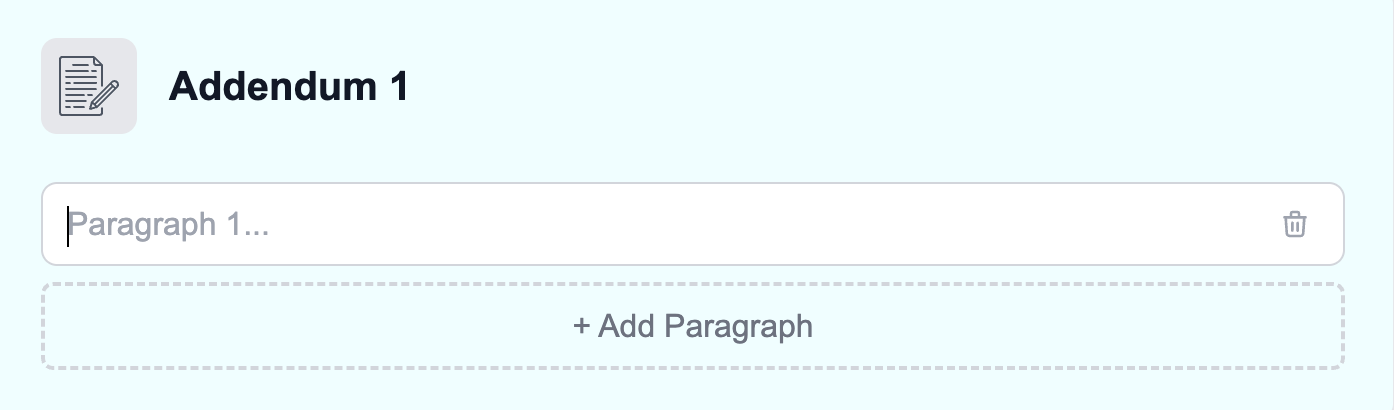
Section titled “Step 3: Dictate the Addendum”Click Dictate Report from the worklist to open the report creation tool. At the top of the report, you’ll see a dedicated Addendum section where you can dictate or type your supplemental content.
Step 4: Sign and Submit
Section titled “Step 4: Sign and Submit”Once you’ve completed your addendum content, sign and submit the report as normal. The addendum will be appended to the top of the completed report, preserving all original content below it.
Canceling an Addendum
Section titled “Canceling an Addendum”If you need to cancel an in-progress addendum, navigate to the study page and click the Cancel Addendum button in the Report Status section.
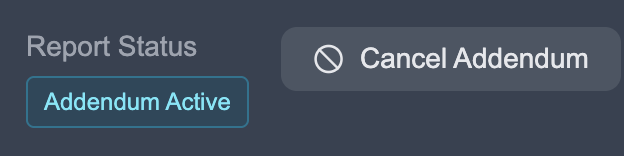
This will delete all progress on the addendum and remove the study from your worklist. The original completed report remains unchanged.
Multiple Addendums
Section titled “Multiple Addendums”Reports can have any number of addendums. If additional corrections or supplemental information are needed after an addendum has been signed, simply add another addendum following the same process. Each addendum is timestamped with the date and time of signature, creating a clear chronological record of all updates to the report.
Viewing and Downloading Reports
Section titled “Viewing and Downloading Reports”While an addendum is active, the completed version of the report (without the in-progress addendum) remains available for viewing and downloading. Once an addendum is signed and saved, the updated report – containing the original content with the new addendum at the top – becomes the viewable and downloadable version.
Compliance and Audit Trail
Section titled “Compliance and Audit Trail”Addendums are designed with regulatory compliance in mind. Each addendum includes:
- Timestamp – Date and time of signature
- Author identification – The reader who signed the addendum
- Preserved original content – The original report remains intact below the addendum
This approach maintains a clear audit trail while providing the flexibility to update reports as clinical information evolves.